Wednesday, July 7, 2021

How to stop showing recent records for lookup fields in UCI

When using lookup fields on the form, it by default shows the recent records in the UCI environment. We need to hide the recent records for the lookup fields.


Solution

We need to change the field behavior settings.

1] UCI Form Settings

Check the Disable most recently used items and then save and publish the form customization changes.


2] Classic Editor Form Settings

If your recent items are still showing up, try to use classic editor and turn on or checked the field behavior setting as depicted in below image.


Monday, July 5, 2021

Generic Method to Hide and Show Tab and Section


Problem Statement

We need to hide and display TAB’s and their respective SECTION's based on configured values. 

The configuration will be loaded based on the template selected for a given entity records.


Solution

As current D365 CRM does not support any out-of-box feature to support this, we created a generic script-based solution to support our scenario.

Note: We cannot show hide sections/tab using Business rules.


Template Configuration

We created a configuration entity which can be used by the End-Client to configure which TAB and SECTION to show.

Tab and Section are created as a Multi-Select for user to decide and configure which section and tab to be displayed.


Configuration Rules
When NO Section Name is listed for a given TAB, by default script should display all the sections for it.

But When Section Name is specified, it will display only those sections for a respective TAB.


Please reach out to me for detailed script and solution.


Thanks.

Vipin Jaiswal

vipinjaiswal12@gmail.com


How to hide a section in MS CRM 2016 based on user logged in ?

https://vjcity.blogspot.com/2016/09/how-to-hide-section-in-ms-crm-2016.html


Sunday, May 9, 2021

Basic terminology in Dynamic CRM

Sales processes typically map to specific types of records that are often used with working with sales automation software. It is important to understand key terminology used in sales and with sales process automation software.

The list below provides definitions for commonly used sales terms and selling components:


Term

Definition

Account

An account represents a business or organization. Sometimes this organization is a customer or a vendor. In some organizations, it might be a different grouping, such as a family. Typically, an account will have related contact records.

Activities

An activity represents supporting records and customer interactions. By default, the system will have activities such as email, appointment, and phone call already configured. Other custom activities meet extra needs of the business.

Contact

A contact represents a single individual. A contact will often have many related records such as an account and activities.

Customer

A customer can be either an account or a contact. Typically speaking, in a business-to-business scenario, this is an account. In a business to consumer scenario, this is a contact.

Lead

A lead represents someone with an interest in what you are selling. A lead might be an existing client, or someone that you have never done business with before.

Opportunity

Like a lead, an opportunity is a potential sales transaction. Typically, an opportunity is a more viable prospect than a lead, and it will contain more information and be tracked for a longer period of time.

Product Catalog

A collection of records that interact with opportunities, quotes, orders, and invoices to facilitate management of products, price lists, discounts, and product families for sales transactions.

Quote

A formal offer for products or services, proposed at specific prices and related payment terms to a customer.

Order

A confirmed request for delivery of goods and services based on specified terms, or a quote that has been accepted by a customer.

Invoice

An order or record of a sale including details about products or services purchased that has been billed to the customer.

Sales Pipeline

A sales pipeline is a snapshot of where prospects are in the sales process. A typical pipeline would show how many deals salespeople are expected to close in a given week, month, or year, and how close a rep is to reaching their sales quota.

Competitors

Competitors are organizations that you are competing with to win deals.


The image below shows an example what a sales lifecycle might look like from beginning to end:


In the image above, we can see a potential customer has contacted our organization expressing an interest in our products and services. They are captured and entered as a lead.

  • Qualify: An account executive reaches out to the lead to gather more information about them and determine if a relationship would be mutually beneficial.

    • If it is determined that it is not a good fit, the lead is disqualified and the sales cycle ends.

    • If it is determined that everyone is a good fit, the lead is qualified and converted to an opportunity.

  • Develop: The opportunity record is used to develop the details of the deal. Details such as the products and services they are interested in, estimated revenue, and time-lines are added to the opportunity.

  • Propose: Once the deal is ready, a quote is added to the opportunity that represents the formal proposal to the customer.

  • Close: When the customer agrees to the quote, an order is generated. The quote and opportunity associated with the order are closed.

  • Fulfill: After the order is fulfilled, an invoice is generated to bill the customer.

To help manage the sales lifecycle, organizations often use salesforce automation software. Modern sales automation software not only helps guide and automate the selling process, but they provide tools to enhance the digital selling experience and build long lasting relationships with customers.


Thursday, April 29, 2021

How to format Date and Time with AM / PM

 I have used below code for formatting date time in a web-resource in dynamic crm.

// Formatting Date and Time with AM / PM 

function formatAMPM()

{

var date = new Date();

var hours = date.getHours();

var minutes = date.getMinutes();

var ampm = hours >= 12 ? 'PM' : 'AM';

hours = hours % 12;

hours = hours ? hours : 12; // the hour '0' should be '12'

minutes = minutes < 10 ? '0' + minutes : minutes;

var strTime = (date.getMonth()+1)+"/"+date.getDate()+"/"+ date.getFullYear()+" "+hours+':'+minutes +' '+ampm;

return strTime;

}


How to format Date in MMDDYYYY


// Formatting Date
this.setDateOptions = function () {
    Date.prototype.formatMMDDYYYY = function () {
        return this.getMonth() + "/" + this.getDate() + "/" + this.getFullYear();
    }

}


More Reference

How to validate end date to be greater than start date

Guidelines to write good JavaScript code in Microsoft Dynamic CRM

Refreshing Rollup field using JavaScript

Most common JavaScript methods for Dynamic 365 CRM


How to validate end date to be greater than start date


// Validating Start and End Date

function ValidateMaintenanceEndDate(executionContext)

{

 var formContext = executionContext.getFormContext();

 var startDateField = formContext.getAttribute("new_maintenancestart");

 var endDateField = formContext.getAttribute("new_maintenanceend");

 var endDateFieldControl = formContext.getControl("new_maintenanceend");

 var startDate = startDateField.getValue();

 var endDate = endDateField.getValue();


 if (startDate != null && endDate != null)

 {

  startDate = new Date(startDate.toISOString().substr(0, 10));

  endDate = new Date(endDate.toISOString().substr(0, 10));


  endDateFieldControl.clearNotification("ErrEndDate");


  if (startDate >= endDate)

  {

   endDateFieldControl.setNotification("cannot be before or equal to Maintenance Start.""ErrEndDate");

  }

  else

  {

   endDateFieldControl.clearNotification("ErrEndDate");

  }

 }

}


More Reference

How to format Date and Time with AM / PM

Guidelines to write good JavaScript code in Microsoft Dynamic CRM

Refreshing Rollup field using JavaScript

Most common JavaScript methods for Dynamic 365 CRM


How to format a phone number in Dynamic 365 crm


// Formatting Phone Number

function formatPhoneNumber(phoneNumber)

{

    if (phoneNumber.length != 10) {

        return phoneNumber;

    }

    var piece1 = phoneNumber.substring(0, 3); //123

    var piece2 = phoneNumber.substring(3, 6); //456

    var piece3 = phoneNumber.substring(6); //7890


    return kendo.format("({0})-{1}-{2}", piece1, piece2, piece3);

}


More Reference here

How to format a phone number in Dynamic 365 crm

How to validate mobile with country code in Dynamic CRM

How to validate mobile number in Dynamic CRM

Remove comma from number fields in Dynamic 365 CRM


Wednesday, April 28, 2021

How to open a web resource and pass parameter in Dynamic 365 CRM


Dynamic CRM  - Xrm.Navigation.navigateTo

I would be using navigateTo here in this blog to launch a webresource. 


JavaScript which is used to launch webresource and pass parameters.

function launchContactWebResource()

{

debugger;


var selectedRow = Xrm.Page.getControl("contactgrid").getGrid().getSelectedRows(); 

var selectedRecordId = selectedRow.getAll()[0].getData().getEntity().getId().replace('{', "").replace('}', "");

var selectedRecordName = selectedRow.getAll()[0].getData().getEntity().getPrimaryAttributeValue();


var selectedContact =

{

    ContactName: selectedRecordName,

    ContactId: selectedRecordId

};


var pageInput = {

    pageType: "webresource",

    webresourceName: "hel_/html/contact/ShowContacts",  // Web-Resource Schema name

    data: JSON.stringify(selectedContact)   // pass parameter here

};


var navigationOptions = {

    target: 2,

    width: 400, 

    height: 400, 

    position: 1    // Open in Center

};


window.parent.Xrm.Navigation.navigateTo(pageInput, navigationOptions).then(

    function success() {

        // Run code on success         

    },

    function error(error) {

        window.parent.Xrm.Utility.alertDialog(error.message);

    }

);

}


Web-Resource Code to fetch and Display Parameters.


<html>

<head>

<script type="text/javascript">


    function onload()

    {

        GetSelectedRecord();               

    }


    function GetSelectedRecord()

    {

        debugger;

        var id = "";

        var name = "";

        if (location.search != null) {

            if (location.search.split("=")[1] != null) {

                id = JSON.parse(decodeURIComponent(location.search.split("=")[1]))["ContactId"];

                name = JSON.parse(decodeURIComponent(location.search.split("=")[1]))["ContactName"];

            }

        }


        var table = document.getElementById("tblOrgActivity");

        var rowCount = table.rows.length;

        var row = table.insertRow(rowCount);

        row.insertCell(0).innerHTML = id;

        row.insertCell(0).innerHTML = name;

    }      


    </script>

</head>

<body onload="baseContacts.onload()">

    <div id="mydata">

        <div>

            <table id="tblOrgActivity" border="1">               

                <tr>

                    <td>Name</td>

                    <td>ID</td>

                </tr>

            </table>

        </div>


    </div>

</body>

</html>


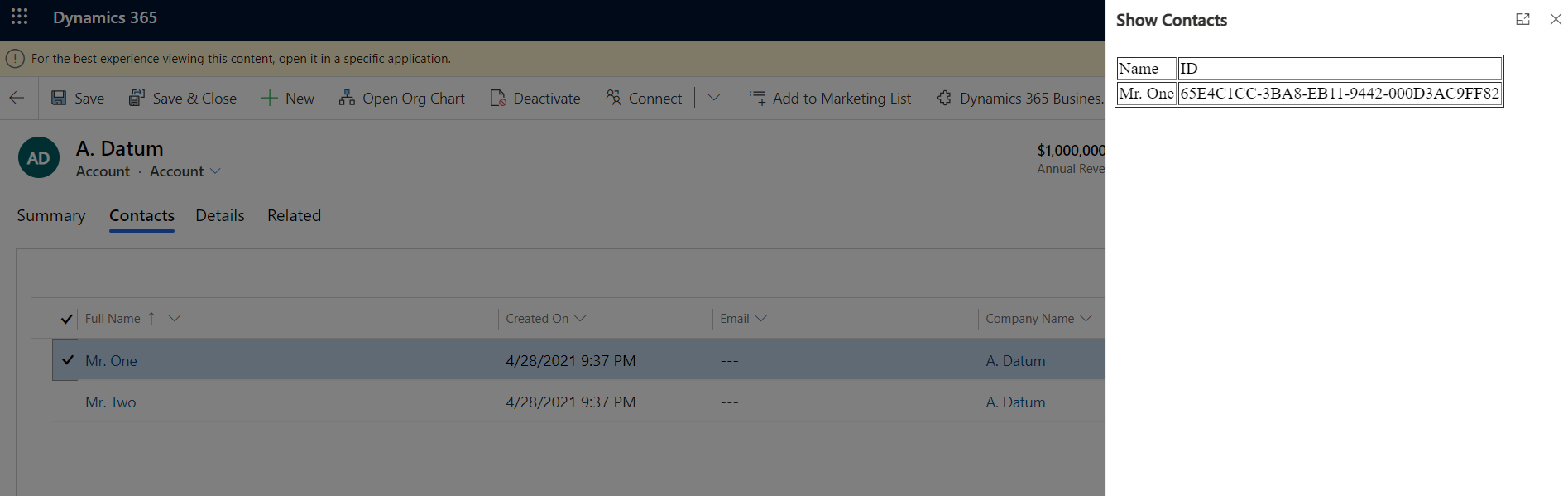
Launch Web-Resource in Adjacent TAB


var navigationOptions = {

    target: 2,

    width: { value: 50, unit: "%" },    

    position: 2    // Open in Adjacent Tab    

};


Generic Method to retrieve parameters


var entityId = getUrlVars()["entityId"];

var entityName = getUrlVars()["entitytypename"];


// Read a page's GET URL variables and return them as an associative array.

function getUrlVars()

{

    var vars = [], hash;

    var hashes = unescape(window.location.search.replace('?'''));

    hashes = hashes.replace('Data=''').replace('data=''').split(',');

    for (var i = 0; i < hashes.length; i++)

    {

        hash = hashes[i].split('=');

        vars.push(hash[0]);

        vars[hash[0]] = hash[1];

    }

    return vars;

}