Wednesday, December 22, 2021

Connect to Dynamic 365 CRM from Console App using Azure Authentication

In this blog, I would try to demonstrate how to connect to Dynamics 365 CRM from a console application using Azure authentication. We will try to understand this in the following way:

1)     Will start with .NET Code and update it with the required information at the end.

2)     Register an application on Azure that will help us get connected to CRM.

3)     Create an Application User in Dynamic CRM and assign a security role


Step by Step Plugin creation in Dynamic 365 CRM 


Step 1) .NET Code 

Note: Make sure your Target Framework is 4.6.2 or Above


Create a console application and add required Microsoft assemblies using NuGet Package Manager.


Add Microsoft.CrmSdk.xrmTooling.CoreAssembly.


Note: Microsoft.CrmSdk.xrmTooling.CoreAssembly version should be 9.1.0.13 or higher in order to connect using ClientSceret


Now, copy the below code and you need to replace highlighted values

  • Org URL,
  • Application Client ID
  • Client Secret Value


using System;

using System.Collections.Generic;

using System.Text;

using Microsoft.Xrm.Sdk;

using Microsoft.Xrm.Tooling.Connector;


namespace ConsoleAzure

{

  class Program

  {

    static void Main(string[] args)

    {

      IOrganizationService orgService;

      orgService = Connect.GetOrganizationServiceClientSecret(

                     "3f9b1a74-f463-422d-a436-750a56ac169e",// Application Client ID

                     "q7E7Q~RRJ1EEcYwDqX7Z9IP0h58ZoEhGk3lPt",//Client Secret

                     "https://org1fe5ad12.crm8.dynamics.com/");// Application URL


      Entity acc = new Entity("account");

      acc["name"] = "dddd";

      var createacc = orgService. Create(acc);

      Console.WriteLine("Account created!");

    }

  }


  class Connect

  {

    public static IOrganizationService GetOrganizationServiceClientSecret(string clientId, string clientSecret, string organizationUri)

    {

      try

      {

ServicePointManager.SecurityProtocol = SecurityProtocolType.Tls12 | SecurityProtocolType.Tls11 | SecurityProtocolType.Tls;

        var conn = new CrmServiceClient($@"AuthType=ClientSecret;url={organizationUri};ClientId={clientId};ClientSecret={clientSecret}");


return conn.OrganizationWebProxyClient != null ? conn.OrganizationWebProxyClient : (IOrganizationService)conn.OrganizationServiceProxy;

      }

      catch (Exception ex)

      {

        Console.WriteLine("Error while connecting to CRM " + ex.Message);

        Console.ReadKey();

        return null;

      }

    }

  }

}

Step 2) Register an application on Azure

Visit https://portal.azure.com/#home 

Search for App Registration

Click on App Registration then click on New registration.


Click on New Registration and provide the below values.


Name: Console App, 

Supported Account Type as Single Tenant.

Redirect URI as http://localhost


Now click on Register.


After registration note application (client) ID things. We need to update it in our code.


Next, we must provide API permission to APP.

Go to API Permissions option Click on Add Permission and in the list Select Dynamics CRM.


Then Select Delegated Permission. Select the User Impersonation permission. Then click Add Permission button.


Next, We have to Grant Admin Consent for the permission. Click the Grant admin consent and click Yes.


Next, we have to generate a Client Secret for the App. In the App click on Certificates & Secrets. Click on New client Secret.

Provide a name and choose Expires month and click Add.


We need to copy the Secret ID and value. Because the value cannot be copied after some time.


Step 3) Application User in Dynamic CRM 

We need to now configure the Application User. Go to Advanced Settings and Choose Security and Select Users. Change the View to Application User and click on Add new User.


Now provide the Client ID we have copied from Azure Active Directory in the Application ID field and save the record.

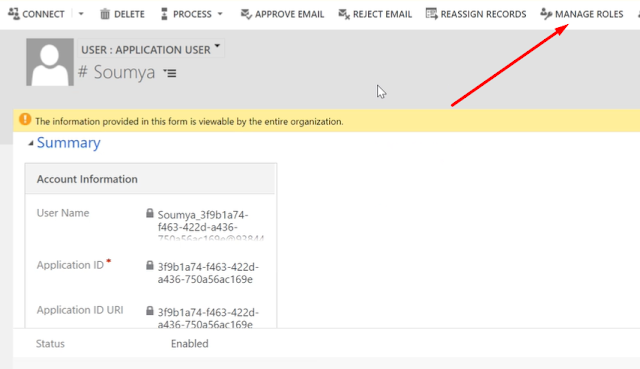
 Other fields will be auto-populated after clicking on save. We need to assign Security role as our last step in this


Assign them a security role.


Friday, October 8, 2021

Unable to Login to Dynamics CRMOrganizationWebProxyClient is null

 While trying to connect to Dynamics CRM Online via a console application, I was having below error

Unable to Login to Dynamics CRMOrganizationWebProxyClient is nullOrganizationWebProxyClient is nullOrganizationServiceProxy is nullOrganizationServiceProxy is nullOrganizationWebProxyClient is nullOrganizationServiceProxy is nullOrganizationWebProxyClient is nullOrganizationWebProxyClient is nullOrganizationServiceProxy is nullOrganizationServiceProxy is nullOrganizationServiceProxy is null


Below is a specific code that works perfectly fine

public static IOrganizationService getProdOrgService()

{

IOrganizationService organizationService = null;


ServicePointManager.SecurityProtocol = SecurityProtocolType.Tls12 | SecurityProtocolType.Tls11 |                                                         SecurityProtocolType.Tls;


ClientCredentials clientCredentials = new ClientCredentials();

clientCredentials.UserName.UserName = ConfigurationManager.AppSettings["D365Username"];

clientCredentials.UserName.Password = ConfigurationManager.AppSettings["D365Password"];

organizationService = (IOrganizationServicenew OrganizationServiceProxy(new Uri(ConfigurationManager.AppSettings["orgserviceUrl"]),      null, clientCredentials, null);


return organizationService;

}


Add the following to your AppSettings


<add key="D365Username" value="vipin@vjcity.com" />

<add key="D365Password" value=" vjcity " />

<add key="orgserviceUrl" value="https:// vjcity.crm.dynamics.com//XRMServices/2011/Organization.svc" />


Here are some other links for Troubleshooting and learning:

·       Plugin in Dynamic 365 CRM

·       Connect to Dynamic 365 CRM from Console App using Azure Authentication

·       Could not load file or assembly 'System.Net.Http, Version=4.0.0.0, Culture=neutral, PublicKeyToken=b03f5f7f11d50a3a' or one of its dependencies

·       Unable to Login to Dynamics CRMOrganizationWebProxyClient is null

·       Assembly 'Microsoft.Crm.Sdk.Proxy' with identity 'Microsoft.Crm.Sdk.Proxy, Version=9.0.0.0, Culture=neutral, PublicKeyToken=31bf3856ad364e35' uses 'Microsoft.Xrm.Sdk, Version=9.0.0.0, Culture=neutral, PublicKeyToken=31bf3856ad364e35' which has a higher version than referenced assembly 'Microsoft.Xrm.Sdk' with identity 'Microsoft.Xrm.Sdk, Version=8.0.0.0, Culture=neutral, PublicKeyToken=31bf3856ad364e35'

·       Could not load file or assembly 'Microsoft.Xrm.Sdk, Version=9.0.0.0, Culture=neutral, PublicKeyToken=31bf3856ad364e35' or one of its dependencies. The located assembly's manifest definition does not match the assembly reference.

·       Could not load file or assembly 'Microsoft.Xrm.Sdk, Version=6.0.0.0, Culture=neutral, PublicKeyToken=31bf3856ad364e35' or one of its dependencies


Wednesday, October 6, 2021

How to Connect TFS from Visual Studio and create local repository

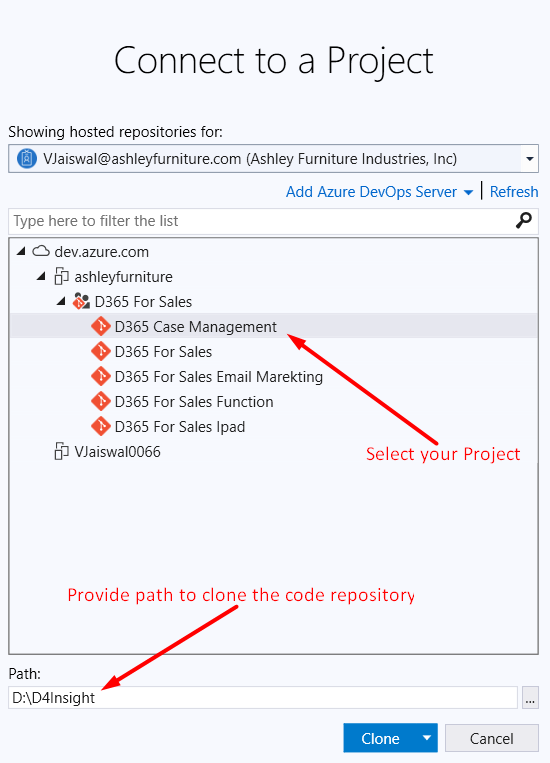
 Launch Visual Studio and Continue without code


Launch Team Explorer and click to connect Icon


Provide your credential to connect to Azure Dev Ops Project. Once connected it will list out various projects to which you are having access.


Once you click the Clone Button it will copy all the code to your local machine.


Here are some other links for Troubleshooting and learning:

·       Plugin in Dynamic 365 CRM

·       Connect to Dynamic 365 CRM from Console App using Azure Authentication

·       Could not load file or assembly 'System.Net.Http, Version=4.0.0.0, Culture=neutral, PublicKeyToken=b03f5f7f11d50a3a' or one of its dependencies

·       Unable to Login to Dynamics CRMOrganizationWebProxyClient is null

·       Assembly 'Microsoft.Crm.Sdk.Proxy' with identity 'Microsoft.Crm.Sdk.Proxy, Version=9.0.0.0, Culture=neutral, PublicKeyToken=31bf3856ad364e35' uses 'Microsoft.Xrm.Sdk, Version=9.0.0.0, Culture=neutral, PublicKeyToken=31bf3856ad364e35' which has a higher version than referenced assembly 'Microsoft.Xrm.Sdk' with identity 'Microsoft.Xrm.Sdk, Version=8.0.0.0, Culture=neutral, PublicKeyToken=31bf3856ad364e35'

·       Could not load file or assembly 'Microsoft.Xrm.Sdk, Version=9.0.0.0, Culture=neutral, PublicKeyToken=31bf3856ad364e35' or one of its dependencies. The located assembly's manifest definition does not match the assembly reference.

·       Could not load file or assembly 'Microsoft.Xrm.Sdk, Version=6.0.0.0, Culture=neutral, PublicKeyToken=31bf3856ad364e35' or one of its dependencies


Monday, August 30, 2021

Ribbon Workbench - For Performance reasons, this solution cannot be loaded

Recently, we were working on button customization in a new environment. 

It so happened that we downloaded the latest solution from develop[1]


But from the latest version - 3.1.443.1, we were facing the below problem for any solution we are trying to import.

For Performance reasons, this solution cannot be loaded:

The solution contains non-entity components (e.g. attributes/forms/apps/dashboards/workflows).

Please create a solution and add only the Entities you wish to edit, with no sub-components!


SOLUTION:

Just try with an old version of the Ribbon Workbench and its works like a charm.

I hope develop[1] team is working on this and soon it is going to resolve this issue. 

Thanks a lot to develop[1] team for making life easy with Ribbon Workbench Tool